

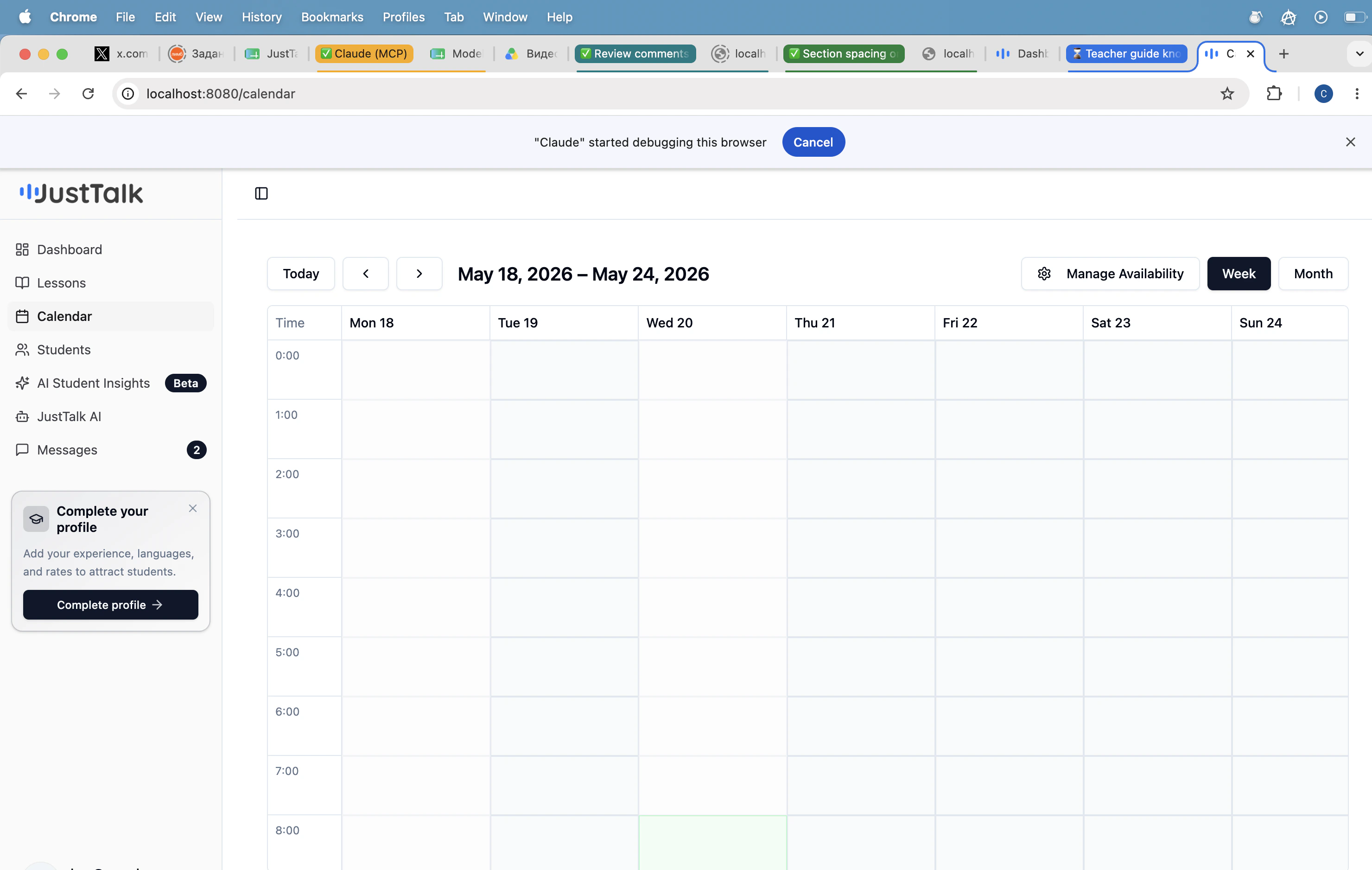
Manage weekly availability
Click Manage Availability to open the drag-to-create editor.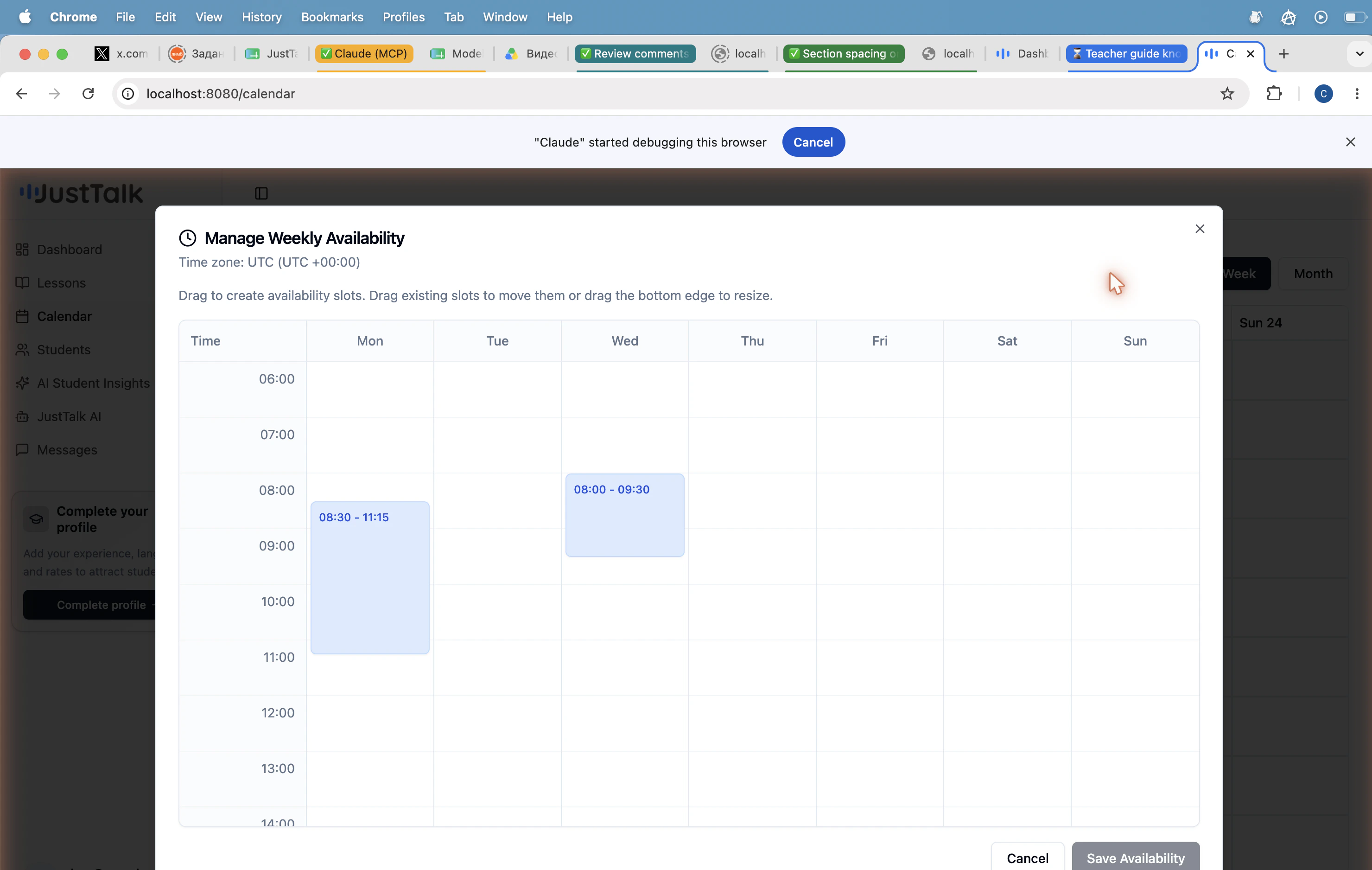
- Drag on an empty cell to create an availability slot.
- Drag a slot to move it to a different time or day.
- Drag the bottom edge of a slot to resize it.
- Times use the time zone shown at the top of the editor — confirm it matches yours before saving.
- Click Save Availability when you’re done. Open slots become bookable immediately.
Marking a slot available does not auto-confirm a booking — students still send a booking request that fills the slot, and you can decline if a conflict comes up.
Tips
- Keep it fresh. An empty or stale calendar means no bookings.
- Block time you can’t teach. Use Lessons → Schedule Lesson → Block Time Slot to reserve windows for personal time.
- Time zones travel. Update the editor’s time zone whenever you change locations so students don’t see a stale schedule.