

Welcome to JustTalk. This guide walks you through every step a teacher needs to take — from setting up an account to running lessons and reviewing AI-generated insights. Read the pages in order on your first day; come back to individual pages as a reference later.Documentation Index
Fetch the complete documentation index at: https://docs.justtalk.ai/llms.txt
Use this file to discover all available pages before exploring further.
What you can do on JustTalk
| Area | What it does |
|---|---|
| Dashboard | Quick-start checklist, upcoming lessons, and onboarding tips. |
| Lessons | Schedule, join, and review every live lesson. |
| Calendar | Manage your weekly availability so students can self-book. |
| Students | Invite students by email and see each one’s lesson history. |
| AI Student Insights | Chat with an AI that has read all of a student’s lessons. |
| JustTalk AI | Build custom AI agents and workflows for students to practice with. |
| Messages | Direct-message students and receive system notifications. |
Quick-start checklist
Your dashboard surfaces four quick-start steps. Complete all four before booking your first paid lesson.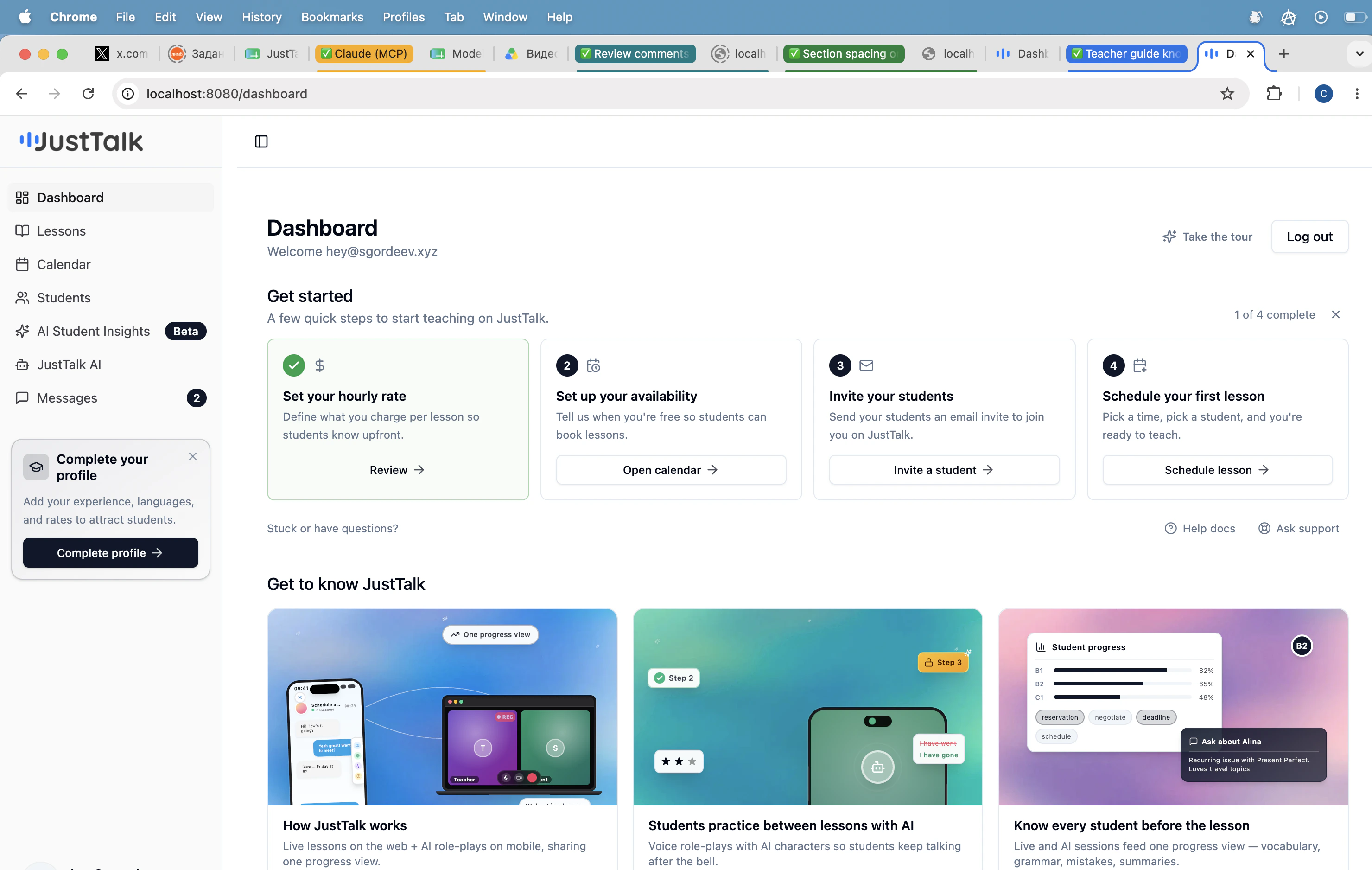
- Set your hourly rate — what students are charged per lesson.
- Set up your availability — when students can book you.
- Invite your students — bring your existing students onto JustTalk.
- Schedule your first lesson — confirm a time with a student.
Where to go next
Profile setup
Onboarding wizard and hourly rate.
Availability
Set the times students can book you.
Students
Invite students and manage your roster.
Scheduling
Book lessons and block time.