> ## Documentation Index
> Fetch the complete documentation index at: https://docs.justtalk.ai/llms.txt
> Use this file to discover all available pages before exploring further.
# Students
> Invite students by email and manage your roster.
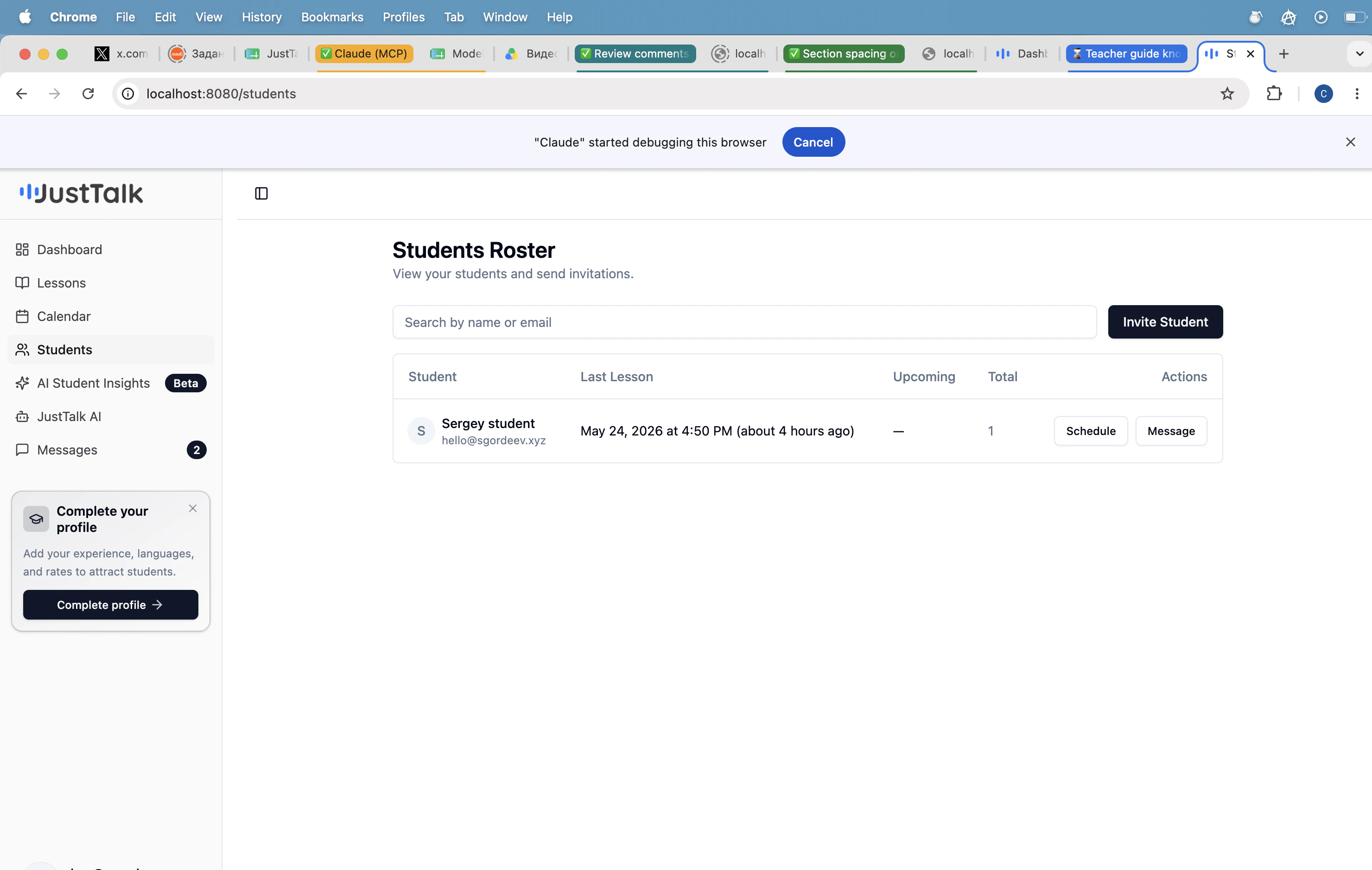
Open **Students** in the sidebar to see your full roster. Search by name or email; each row shows the student's last lesson, upcoming lesson, and total lessons taken.
 ## Invite a student
Click **Invite Student** to open the invitation form.
## Invite a student
Click **Invite Student** to open the invitation form.
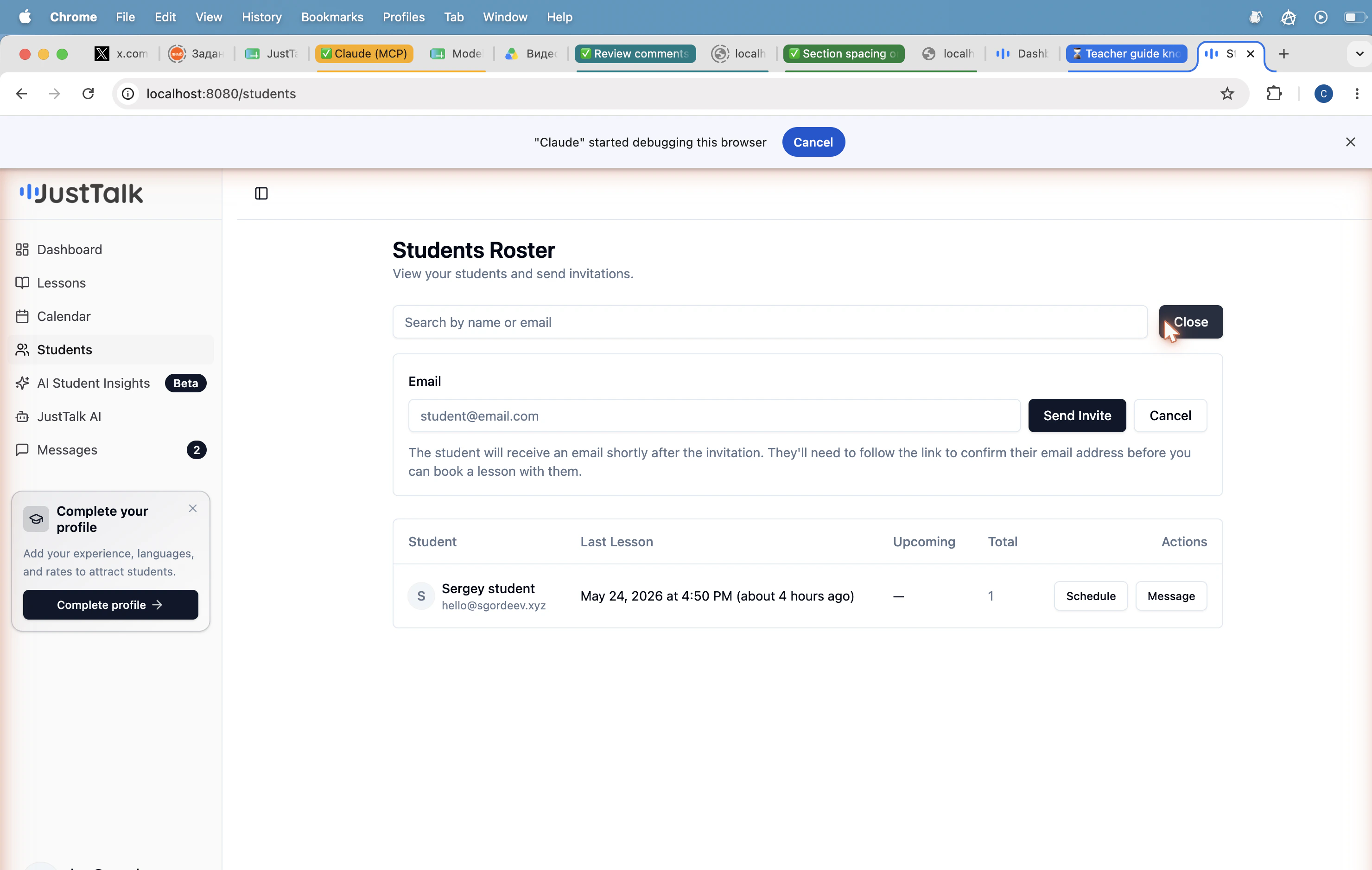 1. Enter the student's email address.
2. Click **Send Invite**.
3. The student receives an email with a confirmation link. Once they confirm, they appear on your roster and you can book lessons with them.
Always use **Invite Student** rather than creating a student account manually. The invite flow correctly links the student to you, sets their role, and avoids the "this email is already a teacher" conflict.
## Per-student actions
From each row on the roster you can:
* **Schedule** — open the lesson scheduler pre-filled with that student.
* **Message** — open a direct-message thread with that student.
For a deeper view of a student's progress, open [AI Student Insights](/knowledge-base/teacher-guide/ai-student-insights).
1. Enter the student's email address.
2. Click **Send Invite**.
3. The student receives an email with a confirmation link. Once they confirm, they appear on your roster and you can book lessons with them.
Always use **Invite Student** rather than creating a student account manually. The invite flow correctly links the student to you, sets their role, and avoids the "this email is already a teacher" conflict.
## Per-student actions
From each row on the roster you can:
* **Schedule** — open the lesson scheduler pre-filled with that student.
* **Message** — open a direct-message thread with that student.
For a deeper view of a student's progress, open [AI Student Insights](/knowledge-base/teacher-guide/ai-student-insights).