> ## Documentation Index
> Fetch the complete documentation index at: https://docs.justtalk.ai/llms.txt
> Use this file to discover all available pages before exploring further.
# Scheduling lessons
> Book lessons, run them live, and block off personal time.
## Where to schedule
You can schedule a lesson from three places:
* **Dashboard → Schedule your first lesson**
* **Lessons → Schedule Lesson** (top-right of the lessons page)
* **Students → Schedule** on any student row
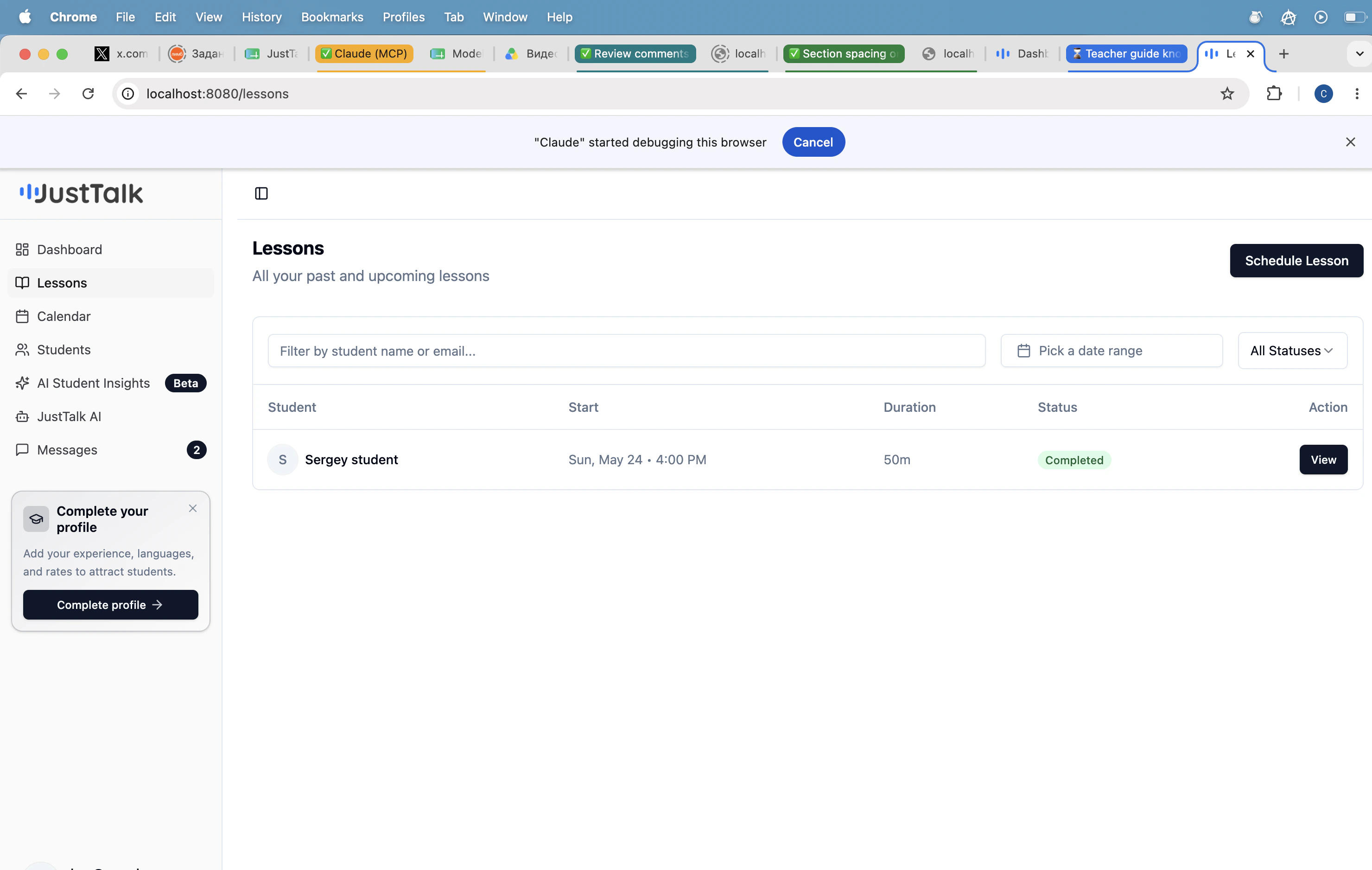 The Lessons page is the source of truth for everything: upcoming, completed, cancelled. Filter by student name or email, narrow by date range, or filter by status.
## Schedule lesson or block time
Clicking **Schedule Lesson** opens a dialog with two modes.
The Lessons page is the source of truth for everything: upcoming, completed, cancelled. Filter by student name or email, narrow by date range, or filter by status.
## Schedule lesson or block time
Clicking **Schedule Lesson** opens a dialog with two modes.
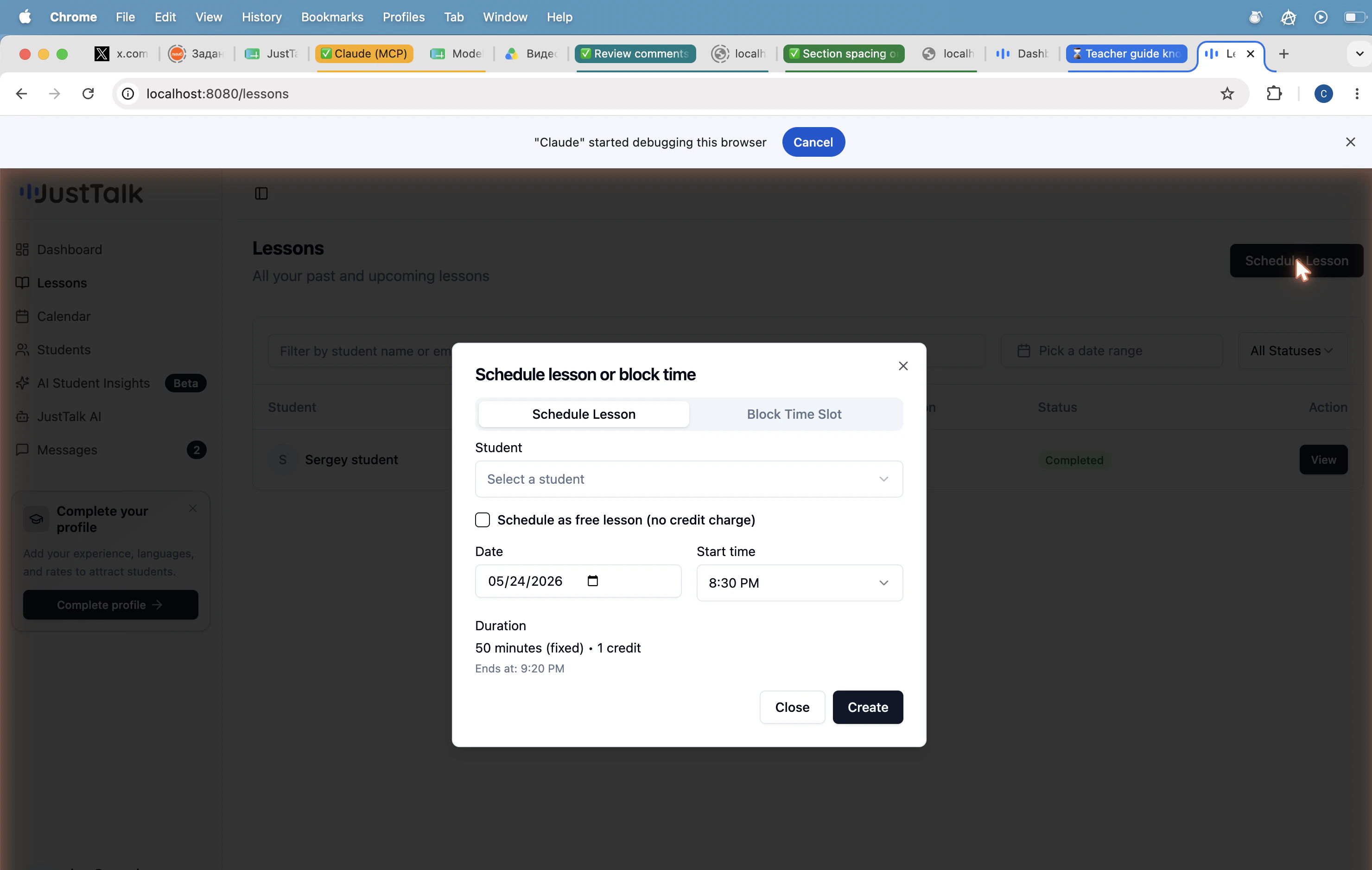 | Mode | Purpose |
| ------------------- | ------------------------------------------------------------ |
| **Schedule Lesson** | Book a 50-minute teaching slot with one of your students. |
| **Block Time Slot** | Block off personal time so students cannot book that window. |
Fields:
* **Student** — pick from your roster.
* **Schedule as free lesson** — toggle on to avoid charging a credit (trial lessons, make-ups).
* **Date** and **Start time** — duration is fixed at 50 minutes; end time is calculated automatically.
Click **Create** to confirm. Both you and the student receive a notification.
## Run the live lesson
When it's time to teach, open the lesson from **Lessons → View → Join lesson**.
| Mode | Purpose |
| ------------------- | ------------------------------------------------------------ |
| **Schedule Lesson** | Book a 50-minute teaching slot with one of your students. |
| **Block Time Slot** | Block off personal time so students cannot book that window. |
Fields:
* **Student** — pick from your roster.
* **Schedule as free lesson** — toggle on to avoid charging a credit (trial lessons, make-ups).
* **Date** and **Start time** — duration is fixed at 50 minutes; end time is calculated automatically.
Click **Create** to confirm. Both you and the student receive a notification.
## Run the live lesson
When it's time to teach, open the lesson from **Lessons → View → Join lesson**.
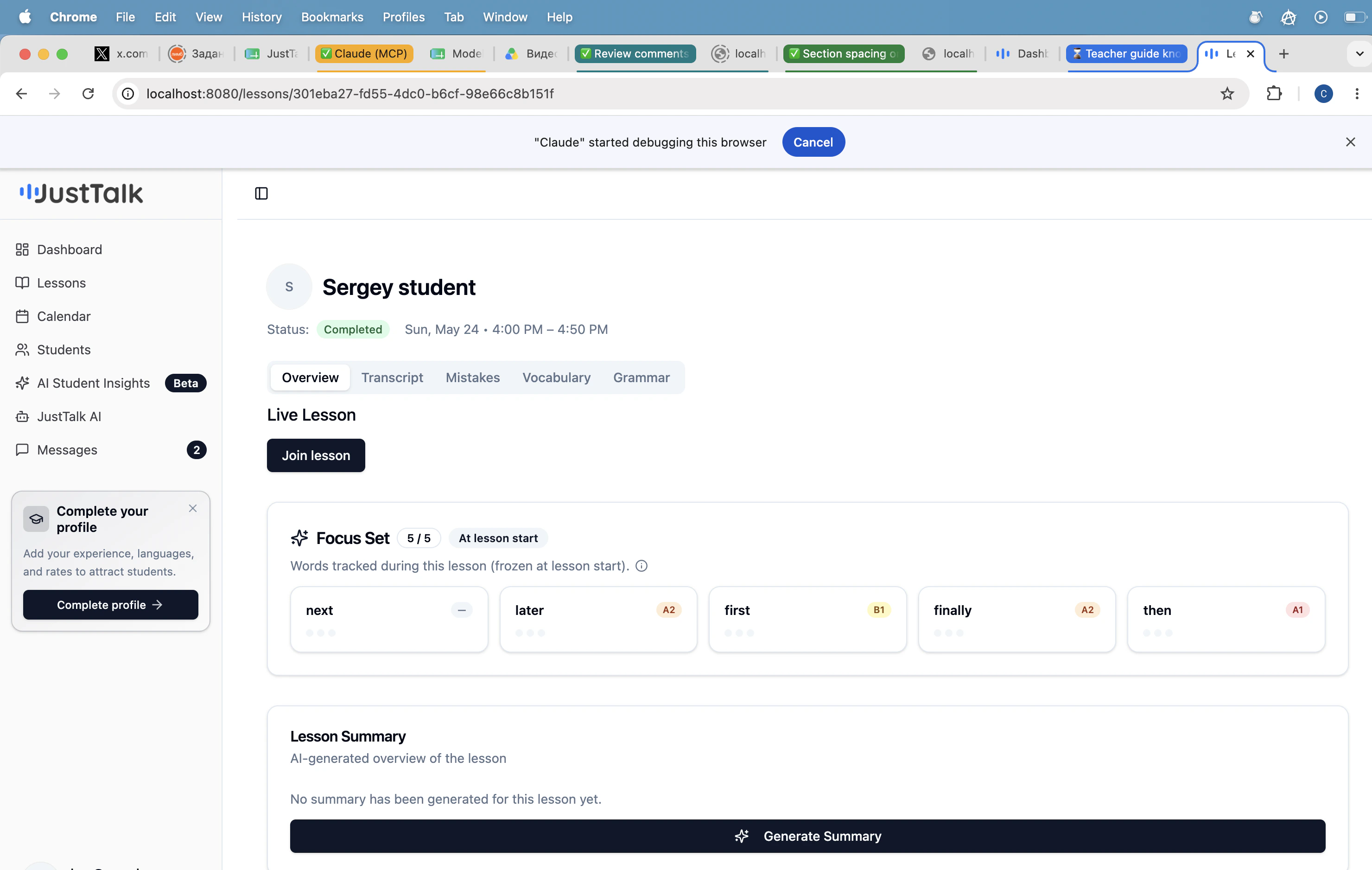 What you'll see during the lesson:
* A built-in video room — no Zoom or Google Meet needed.
* The student's **Focus Set** (5 words tracked for that lesson) is shown at the top so you can pull them naturally into conversation.
* JustTalk records and transcribes the session in the background to power the post-lesson [AI Lesson Report](/knowledge-base/teacher-guide/lesson-reports).
Encourage students to speak in full sentences. The longer a turn is, the more accurate the AI's vocabulary, grammar, and mistake analysis will be afterwards.
What you'll see during the lesson:
* A built-in video room — no Zoom or Google Meet needed.
* The student's **Focus Set** (5 words tracked for that lesson) is shown at the top so you can pull them naturally into conversation.
* JustTalk records and transcribes the session in the background to power the post-lesson [AI Lesson Report](/knowledge-base/teacher-guide/lesson-reports).
Encourage students to speak in full sentences. The longer a turn is, the more accurate the AI's vocabulary, grammar, and mistake analysis will be afterwards.