> ## Documentation Index
> Fetch the complete documentation index at: https://docs.justtalk.ai/llms.txt
> Use this file to discover all available pages before exploring further.
# Overview
> What teachers do on JustTalk and the four-step quick-start checklist on the dashboard.
Welcome to JustTalk. This guide walks you through every step a teacher needs to take — from setting up an account to running lessons and reviewing AI-generated insights. Read the pages in order on your first day; come back to individual pages as a reference later.
## What you can do on JustTalk
| Area | What it does |
| ----------------------- | ------------------------------------------------------------------- |
| **Dashboard** | Quick-start checklist, upcoming lessons, and onboarding tips. |
| **Lessons** | Schedule, join, and review every live lesson. |
| **Calendar** | Manage your weekly availability so students can self-book. |
| **Students** | Invite students by email and see each one's lesson history. |
| **AI Student Insights** | Chat with an AI that has read all of a student's lessons. |
| **JustTalk AI** | Build custom AI agents and workflows for students to practice with. |
| **Messages** | Direct-message students and receive system notifications. |
## Quick-start checklist
Your dashboard surfaces four quick-start steps. Complete all four before booking your first paid lesson.
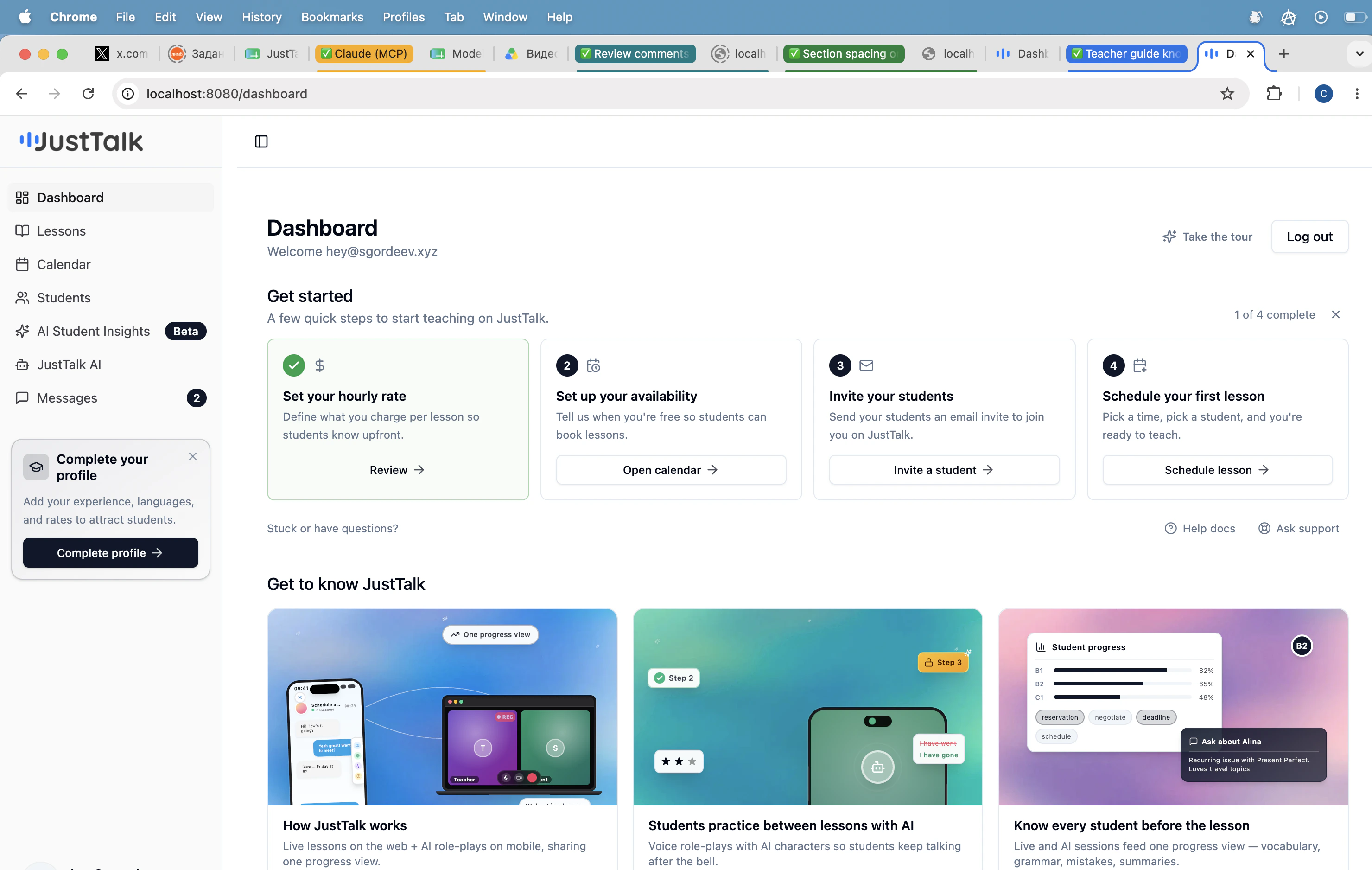 1. **Set your hourly rate** — what students are charged per lesson.
2. **Set up your availability** — when students can book you.
3. **Invite your students** — bring your existing students onto JustTalk.
4. **Schedule your first lesson** — confirm a time with a student.
Each card on the dashboard links straight to the right screen. The progress badge in the top-right shows how many steps you've completed.
Stuck? The dashboard has **Help docs** and **Ask support** links under the checklist.
## Where to go next
Onboarding wizard and hourly rate.
Set the times students can book you.
Invite students and manage your roster.
Book lessons and block time.
1. **Set your hourly rate** — what students are charged per lesson.
2. **Set up your availability** — when students can book you.
3. **Invite your students** — bring your existing students onto JustTalk.
4. **Schedule your first lesson** — confirm a time with a student.
Each card on the dashboard links straight to the right screen. The progress badge in the top-right shows how many steps you've completed.
Stuck? The dashboard has **Help docs** and **Ask support** links under the checklist.
## Where to go next
Onboarding wizard and hourly rate.
Set the times students can book you.
Invite students and manage your roster.
Book lessons and block time.