> ## Documentation Index
> Fetch the complete documentation index at: https://docs.justtalk.ai/llms.txt
> Use this file to discover all available pages before exploring further.
# Messaging
> Direct-message students and receive system notifications about scheduled lessons.
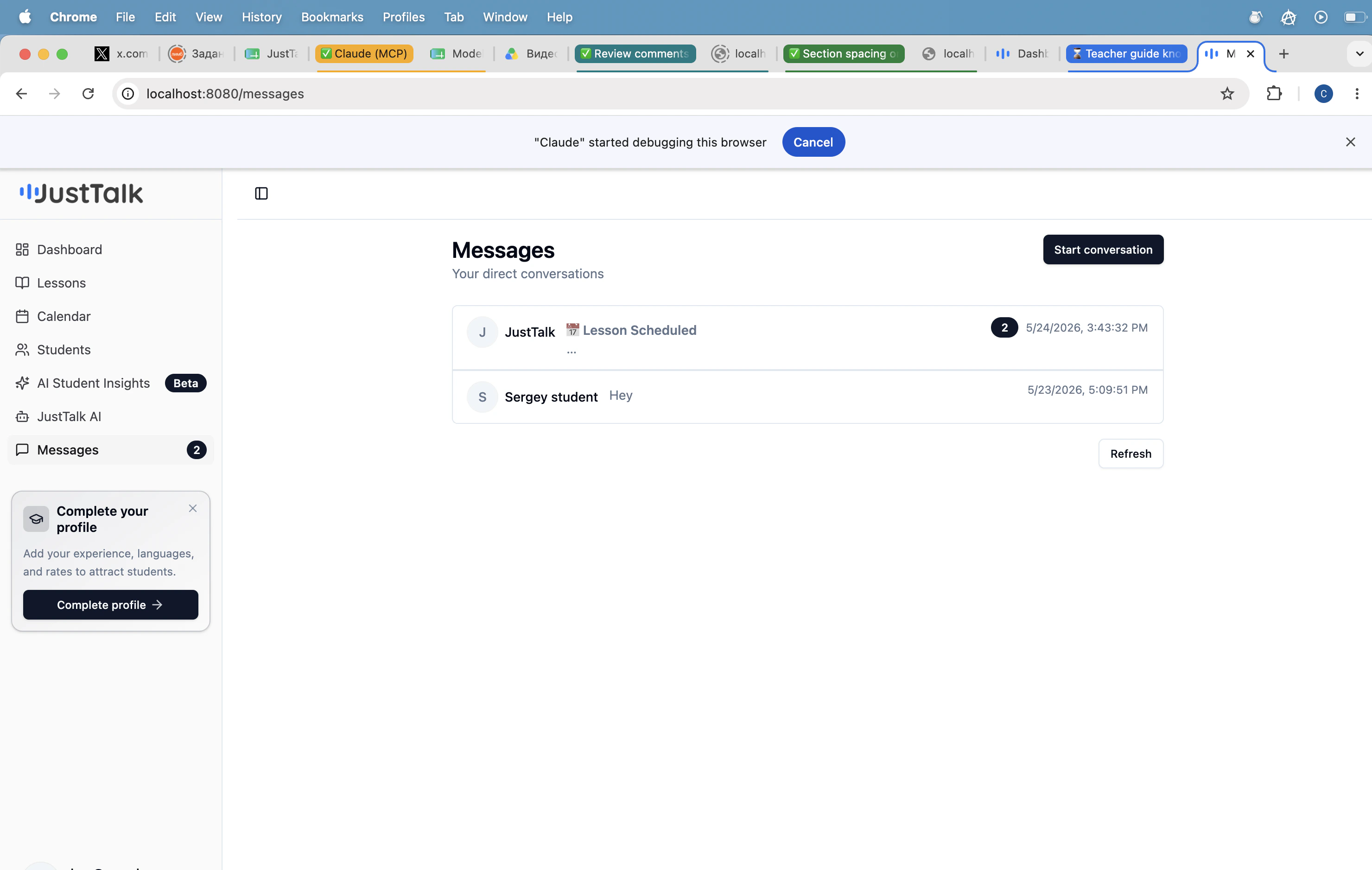
**Messages** in the sidebar is your direct-message inbox with every student.
 ## What's in the inbox
* **Student threads** — one per student you've messaged or who has messaged you.
* **System messages** — e.g. *Lesson Scheduled* notifications from JustTalk itself appear in the same inbox.
* The unread badge on the sidebar reflects all unread threads.
## Starting a conversation
Two ways:
* Click **Start conversation** on the Messages page to pick from your roster.
* Click **Message** on any row of the [Students](/knowledge-base/teacher-guide/students) roster.
## What to send
* **Post-lesson summaries** — paste the output of **Generate Summary** from the [lesson report](/knowledge-base/teacher-guide/lesson-reports).
* **Homework** — reading links, vocabulary lists, audio notes.
* **Schedule changes** — confirm rescheduling or cancellations in writing.
* **Encouragement** — a one-line "great job today" goes a long way for student retention.
Keep all coaching context in JustTalk Messages rather than scattering across WhatsApp / email. Your future self (and any backup teacher) will thank you.
## What's in the inbox
* **Student threads** — one per student you've messaged or who has messaged you.
* **System messages** — e.g. *Lesson Scheduled* notifications from JustTalk itself appear in the same inbox.
* The unread badge on the sidebar reflects all unread threads.
## Starting a conversation
Two ways:
* Click **Start conversation** on the Messages page to pick from your roster.
* Click **Message** on any row of the [Students](/knowledge-base/teacher-guide/students) roster.
## What to send
* **Post-lesson summaries** — paste the output of **Generate Summary** from the [lesson report](/knowledge-base/teacher-guide/lesson-reports).
* **Homework** — reading links, vocabulary lists, audio notes.
* **Schedule changes** — confirm rescheduling or cancellations in writing.
* **Encouragement** — a one-line "great job today" goes a long way for student retention.
Keep all coaching context in JustTalk Messages rather than scattering across WhatsApp / email. Your future self (and any backup teacher) will thank you.