> ## Documentation Index
> Fetch the complete documentation index at: https://docs.justtalk.ai/llms.txt
> Use this file to discover all available pages before exploring further.
# Availability
> Set the times each week when students can book lessons with you.
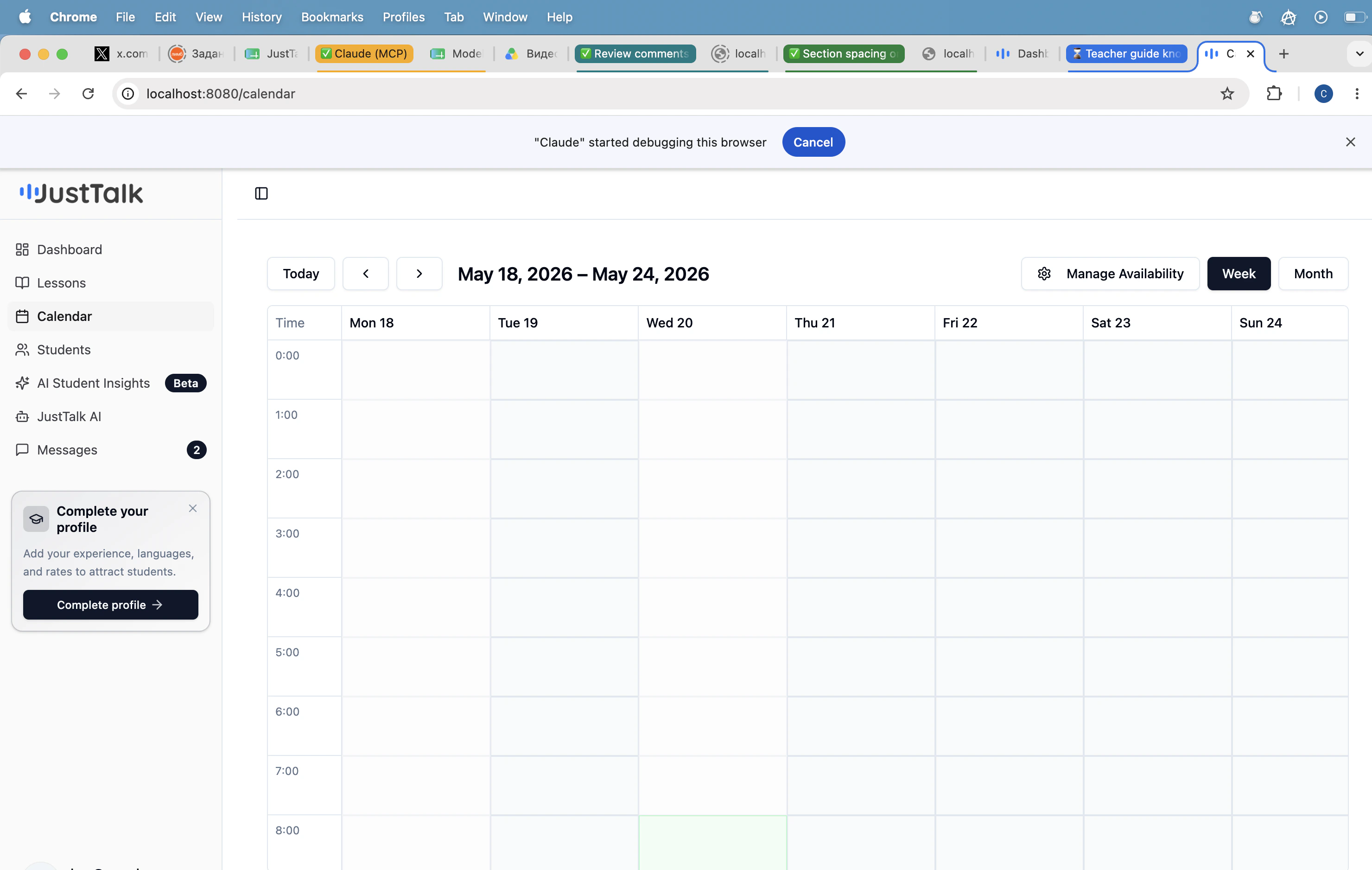
Open **Calendar** in the sidebar to see your week. Use the **Week / Month** toggle at the top right and the arrows to navigate between weeks.
 ## Manage weekly availability
Click **Manage Availability** to open the drag-to-create editor.
## Manage weekly availability
Click **Manage Availability** to open the drag-to-create editor.
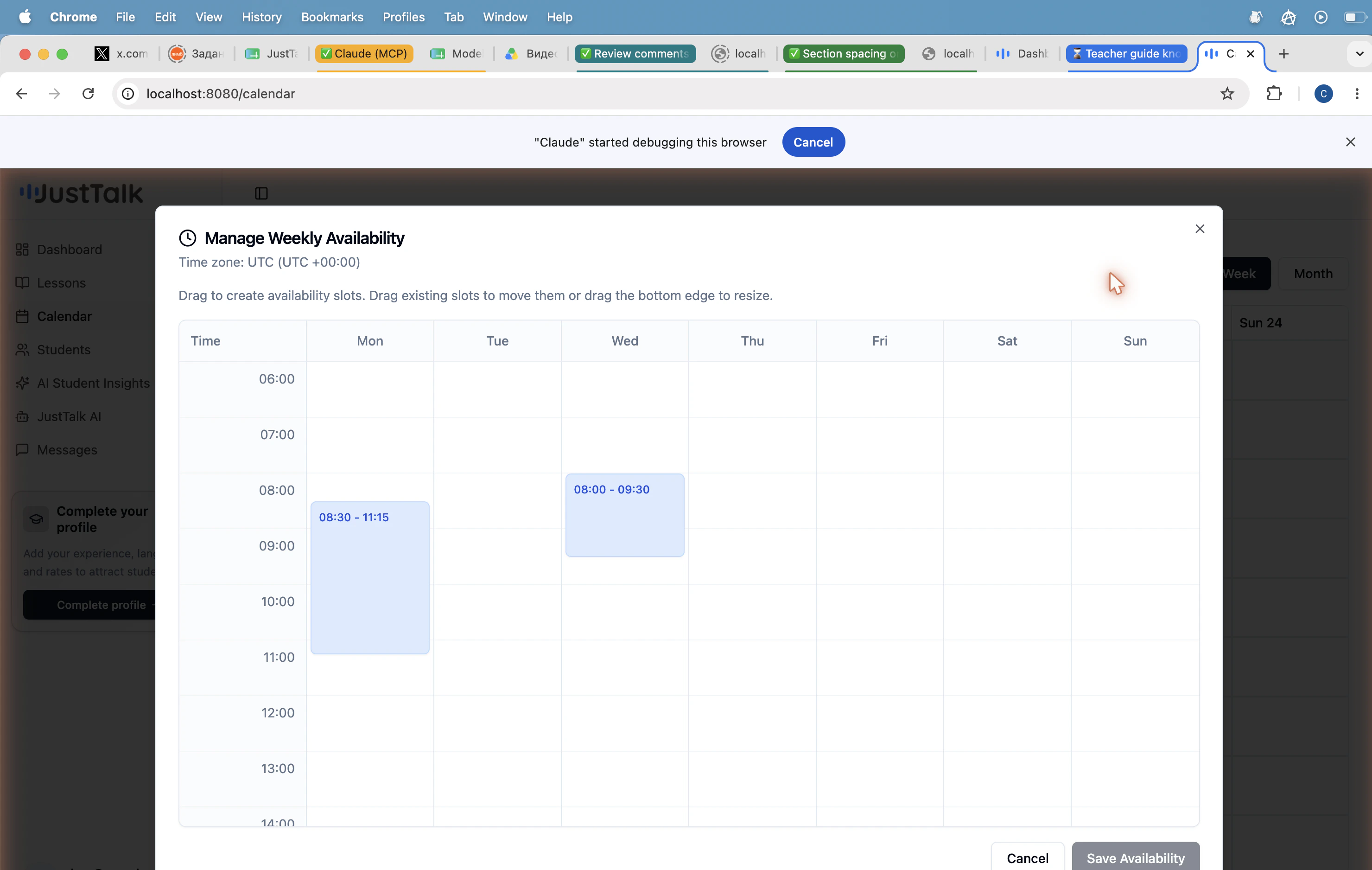 * **Drag** on an empty cell to create an availability slot.
* **Drag a slot** to move it to a different time or day.
* **Drag the bottom edge** of a slot to resize it.
* Times use the time zone shown at the top of the editor — confirm it matches yours before saving.
* Click **Save Availability** when you're done. Open slots become bookable immediately.
Marking a slot available does not auto-confirm a booking — students still send a booking request that fills the slot, and you can decline if a conflict comes up.
## Tips
* **Keep it fresh.** An empty or stale calendar means no bookings.
* **Block time you can't teach.** Use **Lessons → Schedule Lesson → Block Time Slot** to reserve windows for personal time.
* **Time zones travel.** Update the editor's time zone whenever you change locations so students don't see a stale schedule.
* **Drag** on an empty cell to create an availability slot.
* **Drag a slot** to move it to a different time or day.
* **Drag the bottom edge** of a slot to resize it.
* Times use the time zone shown at the top of the editor — confirm it matches yours before saving.
* Click **Save Availability** when you're done. Open slots become bookable immediately.
Marking a slot available does not auto-confirm a booking — students still send a booking request that fills the slot, and you can decline if a conflict comes up.
## Tips
* **Keep it fresh.** An empty or stale calendar means no bookings.
* **Block time you can't teach.** Use **Lessons → Schedule Lesson → Block Time Slot** to reserve windows for personal time.
* **Time zones travel.** Update the editor's time zone whenever you change locations so students don't see a stale schedule.